

By describing and sharing research data in a repository, you make it possible for others to review your findings and reuse data for further studies. To do this, the data need to be organized and presented in a self-explanatory way.
See also:
Certified repositories, like SND CARE, apply a review process, which means that data and documentation must meet certain minimum requirements before they are published and made available. Reviewers will work with you to ensure that the published dataset is reusable. It is important that reviewers can contact you and that you take an active role in the review process.
To get a quick start on your data description, you can have a look in Share Data: Quick Guide at Researchdata.se.
Share data: Step by step
To begin using SND’s documentation system DORIS, you need to register as a user by logging in to My Pages in one of the following ways:
- The preferred way is to use your SWAMID account from your institution, or your ORCID. For ORCID login to work, you must have activated your ORCID account.
If you do not have a SWAMID or ORCID account, you can either: - Create an eduID account and use that to log in, or
- Create login credentials by clicking Log in using your username/password and then Create a new account.
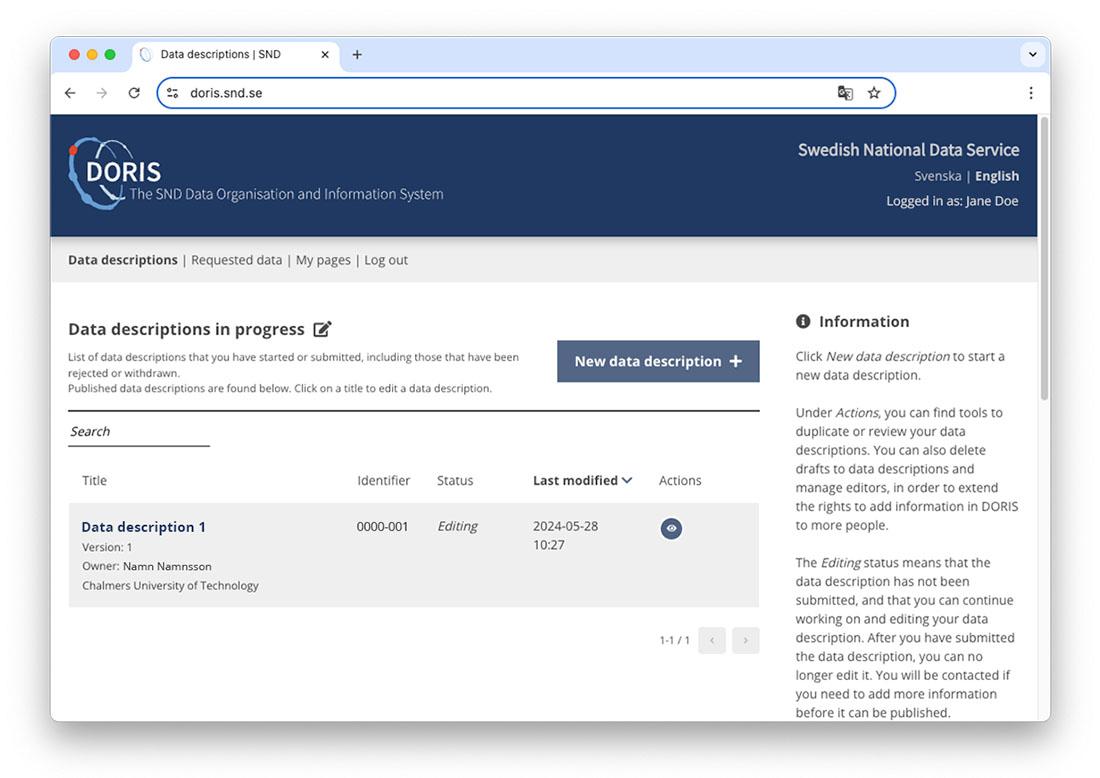
On the first page in DORIS after you log in, you see all your data descriptions on the Data descriptions tab. You can also see your requests for access to data on the Requested data tab.
In the data description form in DORIS, you enter information – or metadata – about the data you will share. Metadata is information about data, and what will appear in the catalogue entry on Researchdata.se. The more metadata you provide, the easier it will be for others to understand your research material.
DORIS is bilingual and can be used in Swedish or English. Keywords and other information from controlled vocabularies are generally translated automatically, but you will need to manually translate the content in free-text fields.
1. Create a data description and enter initial information
Start a new data description by clicking New data description.

To create and save a data description, you must provide some basic information about the dataset. These initial details will determine how the rest of the form is structured. All fields except for Research principal can be edited later.
Initial information
| Title | Provide the title in both Swedish and English. If there is no Swedish translation, you can use the English title in both fields. There is also a field for Alternative title later in the form. If you are describing data for a specific article or publication, the title for the dataset can be “Data for [article title]”. It is not recommended to use the same title for both the dataset and the publication. |
| Data available through another portal/service (only metadata in DORIS) | If the dataset is available through another portal or service, you can describe it in DORIS to make it findable on Researchdata.se. The dataset must have a persistent identifier (PID) that you will also enter in DORIS. |
| File access level | Files shared through DORIS can have different access levels. If all files in the dataset can be shared openly, select All files are openly accessible. If the dataset contains files with classified information, copyrighted material, or sensitive personal data, these files have to be shared with restricted access. Select Contains files with restricted access, which allows you to upload both files that will be openly accessible and files with restricted access. Files with restricted access require the research principal's approval and, possibly, a confidentiality review before they can be made available. |
| Data contain personal data or other protected information | It is important that you enter the correct information here, to avoid sharing data in violation of the General Data Protection Regulation (GDPR) or other legal requirements. If you are uncertain, consult with your local research data support or contact SND. You can read more about data containing personal information in SND’s handbook for data containing personal information. |
| Research principal | Specify which organization is responsible for the dataset. If there are multiple responsible organizations, enter the organization responsible for sharing the data. Note: This information cannot be changed later in the form, as it determines the organizational affiliation of the data description in DORIS. |
| Research area profile | Select the profile that best matches your research field under Research area profile, to make the data description form as relevant as possible. If you cannot find your specific field in the list, choose the general profile. There is also a Simplified registration profile that can be used for urgent publication, which provides a minimal set of fields to describe the data and where the data description is not reviewed. You can easily change the profile later if needed, both before and after publication. |
2. Describe the research data
After saving the initial information, you will proceed to a more detailed form where you further describe your dataset. At this stage, your data description will have the status Editing and a DOI persistent identifier will be generated and reserved for the dataset. Note that a reserved DOI will not become active – or link to the dataset – until the catalogue entry is published.
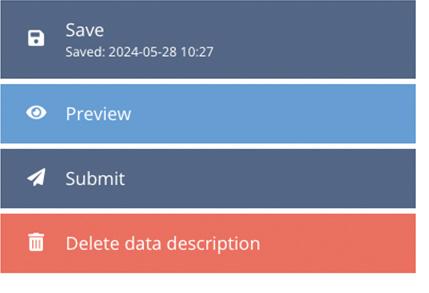
You can now save your data description as a draft by clicking the Save button in the right-hand side menu and return to it later. You can continue editing until you choose to Submit it for review.
Click Preview to see what the landing page for the dataset will look like at Researchdata.se.
2.1 Add metadata
To be approved for publication, a dataset must include all mandatory fields. These fields are marked with a red dot ·. Mandatory fields may vary depending on the selected research area profile. You can submit a data description for review even if some mandatory fields are incomplete – for example, if you are unsure of what information to fill in.
Metadata fields that are not mandatory but are considered important within your research field should still be completed as fully as possible. Keep in mind that metadata and documentation should, as far as possible, be understandable even to researchers from other disciplines.
Read more about SND’s requirements and recommendations for data and metadata in the document Requirements and recommendations for data and metadata described and shared through DORIS (Zenodo).
The more metadata you include in the data description form, the more visible your dataset will be in the Researchdata.se catalogue. This also makes it easier for potential reusers to find the dataset and assess its suitability for their own research.
2.2 Upload data and documentation files
In section 2. Files, you upload the files belonging to the dataset. Materials shared through DORIS should be research data, meaning data that have been generated or collected through research, or materials that can be used for scientific analysis in later research.
DORIS allows you to share both openly accessible files and files with restricted access in the same dataset. The Swedish Research Council recommends that research data should be made available as openly as possible and only as restricted as is necessary, within the legal framework of current legislation. This means that sensitive and protected data should be made available with restricted access, but that all other data, as well as documentation, should be made available with open access as far as possible
Data files
You can upload up to 500 files per access level in a dataset to DORIS. If your dataset contains more files than that, you can compress them to a ZIP file. If the total file package is larger than 50 GB, contact your local research data support or SND at incoming@snd.se for assistance.
Documentation files
Files containing documentation of the data material should be made openly accessible even if the files they describe are available with restricted access. Relevant documentation provides information that other researchers may need to understand and reuse the data. These can include, for example, interview guides, variable lists, codebooks, coding schemes, or technical reports. Documentation of how data have been processed or instructions for software required to handle the data can also be important for understanding the data material.
SND does not impose specific format requirements for documentation. What documentation is called and what form it takes may vary between and within disciplines. Relevant information may also be summarized in a README file. An example of a README file can be found in SND’s DORIS README template (Zenodo).
Storage of uploaded files
Files uploaded to DORIS are typically stored with SND’s repository, SND CARE. Some organizations have integrated local storage in DORIS; files will then be automatically uploaded to their local storage.
Some universities, by agreement with SND, have specific procedures for datasets with restricted access, where files are stored by the research principal (the responsible organization) but where there is not yet a technical integration between local storage and DORIS in place. If that is the case, you enter information decscribing the files in DORIS. This information can be entered manually or by automatic extraction of file information for files you upload by the drag-and-drop function.
Contact your organization’s local function for research data support for help with uploading files in DORIS to the correct storage space.
2.3 Invite editors and send messages
You can invite more people to edit the data description. Go to the Activities and settings menu > Editor in the left-hand panel within a data description and enter their e-mail addresses, and an invitation will be sent to them by e-mail. Note that several persons cannot edit a data description at the same time. When one person opens the data description, it becomes locked for everyone else.
An editor can:
- edit and add metadata
- upload data and documentation files
- read messages sent within DORIS.
Only an owner can:
- submit a data description for review
- open a published dataset to update the metadata
- publish updated metadata for a published dataset
- create a new version of a dataset
- add editors
- send messages within DORIS.
If you need to change owner for a data description, contact us at SND for assistance. Send an e-mail about which data description you need changed and the new owner’s e-mail address to snd@snd.se. The new owner must have logged into DORIS at least once, so that their e-mail address is registered in the database.
If you have any questions about filling in the fields of the data description form or about your dataset, you can post messages to your local research data support function and/or to SND from within your data description in DORIS. Go to Activities and settings > Messages.
3. Submit the dataset for review
When you are ready to submit your data description, together with the data and documentation files for the dataset, for review, click Submit.
You can leave a message when you submit the files – for example, if you want to delay the publication of the dataset until a certain article is published, or if you have a deadline when the dataset must be published. You must also attest that the data are not being shared in a way that violates any laws. If the data will be stored with SND CARE and your organization has not signed a service agreement for SND’s services, you will also need to sign a digital agreement for the individual dataset. You can view and download this agreement under Other actions.
After submission, the dataset will have the status Under review.
Note: The dataset is not immediately published in the Researchdata.se catalogue when you click Submit. It is first sent to a reviewer. If the reviewer finds that additional information is needed before publication, you will be contacted.
3.1. The review process
The review of your dataset is not an academic assessment of your research but focuses on improving the accessibility and reusability of your data.
The review process ensures that
- data files are in appropriate formats
- all relevant fields in the form are completed
- there are sufficient metadata to enable reuse
- uploaded documents can be understood.
Depending on whether you belong to an organization with a local function for research data support that uses DORIS, your data description will be reviewed either by staff at your organization or at SND. While the data description is under review, you cannot edit it. If you wish to make changes, you can contact the assigned reviewer via the messaging feature in DORIS.
If the reviewer finds that information is missing, they will return the data description to you with a note on what needs to be added. You will then be able to edit it again. Once you’ve completed the necessary updates, resubmit the data description in the same way as before.
Under Activities and settings, you can communicate with the reviewer about the data description. This section also contains the activity log that tracks all changes to the data description’s status through the review workflow.
3.2 Closed review
If you want to hold off on publishing a dataset until a related article has undergone peer/closed review and been accepted, you can check the box Delay dataset publication (closed review) in the 1. Access and restrictions section in DORIS. This means the data description will not be published on Researchdata.se until you notify SND that the article has been accepted.
Refer to the dataset using the reserved DOI that you find in the same section in DORIS. The reserved DOI will not be activated and lead to the dataset landing page until the dataset has been published on Researchdata.se.
You can request a preview link to the dataset to use for closed review purposes. Note that this link will not lead to an anonymous view of the dataset. If a journal requires double-anonymous, or double-blind, review, contact SND at incoming@snd.se for assistance.
If you include the preview link in the article’s Data Availability Statement, note that it is only intended for editors and reviewers. You should therefore replace it with the correct DOI when the final revisions are submitted.
Read more about writing a Data Availability Statement in the quick guide to data sharing on Researchdata.se.
Remember that you should always submit the data description for review in DORIS, even if you have a reserved DOI for the dataset. This ensures that the journal’s reviewers look at the version of the dataset that will be published, and not a preliminary version that may later need extensive revisions after the closed review has been completed.
Datasets under closed review are not searchable on Researchdata.se. They are also less likely to be discovered through search engines like Google.
Until the dataset is published on Researchdata.se, you can update metadata, data files, and documentation without a new DOI being created. If the files are updated after publication, this creates a new version of the dataset, with a new DOI.
Once your article has been accepted or published, your data can be published. The reserved DOI will be activated as the permanent link to access the dataset. It is important to inform SND that it is time to publish the data – SND does not have automated monitoring for this.
3.3 Data publication
When both you and the reviewer agree that all required information is included in the data description, the dataset can be published. This is done either by your institution’s research data support or by SND. You will receive a confirmation e-mail once publication is complete.
The DOI that has been reserved during the editing process will now become active and lead to the entry for the dataset in the catalogue on Researchdata.se.
4. Manage published datasets
If you need to update any information or files after a dataset has been published, you can update it directly within the data description. To update a published dataset, you either edit the metadata (if you are only making changes to the metadata) or create a new version of the dataset (if you are making changes of the data or documentation files).
4.1 Edit metadata
Click the Edit metadata button. The form opens for editing and you can update the information in the form. These changes do not need to be reviewed before they are published. To track the changes to the data description, we recommend that you enter a note about what changes you have made before re-publishing the data description.
You cannot add new files when you edit metadata for a data description. If you want to add new files, you must create a new version of the dataset.
4.2 Create a new version
Click Create new version. A draft to a new version of the data description will open, with the status Editing. New versions of datasets go through the same workflow as entirely new data descriptions and will be reviewed before publication. See the steps under 3.1.
If you want to copy files from the previous version of the dataset, click Import from previous version. You can delete or add files within a folder tree, but not edit the file or folder names.
5. Reuse and adapt similar datasets
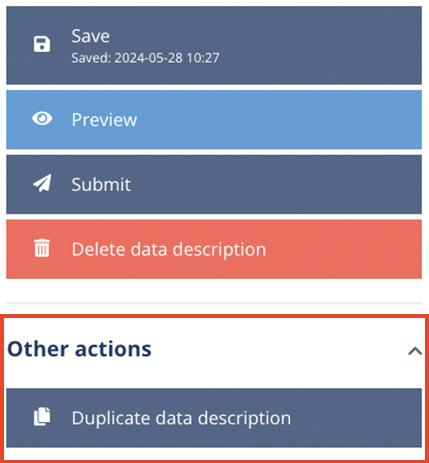 Under Other actions, you can choose to duplicate a data description. The metadata will be copied into a new data description titled “Copy of [the title of the original data description]”. You can then edit the title and content as needed. Note that uploaded files are not copied.